






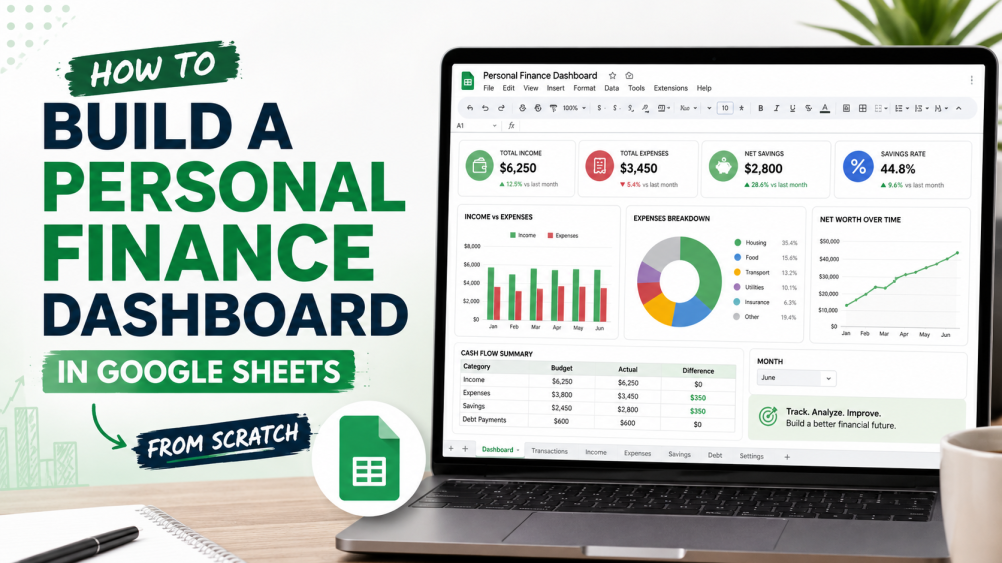
How to Build a Personal Finance Dashboard in Google Sheets from Scratch

How to Build a Personal Finance Dashboard in Google Sheets from Scratch

Can a new crypto investor feel calm when Bitcoin drops overnight, bills are due, and no clear view of cash is available? This is the exact reason a personal finance dashboard in Google Sheets matters. It puts income, spending, savings, debt, and crypto holdings in one place. As a result, an investor can see the full money picture before making the next move.

A Google Sheets dashboard is also useful because it is flexible. Google Sheets supports charts, pivot tables, dropdown lists, named ranges, and finance data tools that can turn raw numbers into clean views. Google’s own help pages show that users can add charts from selected cells, create pivot tables from data with headers, add dropdown lists through data validation, and name ranges for clearer formulas.

Step 1: Set the Dashboard Goal First

The dashboard should not start with colors or charts. It should start with questions. For a crypto-focused reader, the best questions are simple: How much cash is available? How much is invested in crypto? What is the monthly burn rate? What is the current net worth?

Next, the sheet should track five core areas: income, expenses, savings, debt, and crypto portfolio value. This keeps the dashboard useful, not crowded. It also stops the user from mixing daily spending with long-term holdings.

Step 2: Create the Main Tabs

A clean budget spreadsheet needs clear tabs. The dashboard can use these tabs:

Tab Name Purpose Key Columns
Dashboard Main visual page Net worth, cash flow, crypto value
Transactions Daily income and spending Date, type, category, amount, wallet or bank
Crypto Holdings Coin balances Coin, quantity, buy price, current price
Debt Tracker Loans and cards Lender, balance, payment, interest
Goals Savings and targets Goal name, target, saved, deadline


This structure helps Google Sheets read the data cleanly. In addition, each column should have one job. For example, the “category” column should not contain notes. Notes should stay in a separate column.

Step 3: Build the Transactions Tab

The expense tracker starts in the Transactions tab. Add columns for date, account, type, category, amount, and note. Then add categories such as rent, food, transport, subscriptions, trading fees, fiat deposit, crypto buy, crypto sell, and emergency fund.

After that, dropdown lists should be added to the category and type columns. Google Sheets allows dropdown lists through data validation, which helps keep entries consistent. This matters because “Food,” “food,” and “groceries” can break clean reports if they mean the same thing.

Step 4: Add Crypto Holdings the Right Way

The crypto portfolio tracker should not only show coin names. It should show quantity, average buy price, total cost, current price, current value, profit or loss, and portfolio weight.

For current crypto prices, CoinGecko is a common market data source. Its API gives access to crypto prices, market data, metadata, historical charts, and on-chain coverage across many networks. However, a beginner can also enter current prices manually once a week. Manual updates are slower, but they reduce setup issues.

Meanwhile, Google’s GOOGLEFINANCE function can fetch current or historical securities data from Google Finance, which is helpful for stocks, funds, and some currency tracking. For crypto, the dashboard should treat outside price feeds with care and check values before major decisions.

Step 5: Create Net Worth and Cash Flow Blocks

The net worth tracker is the heart of the dashboard. It should add cash, savings, investments, and crypto. Then it should subtract credit card debt, loans, and other liabilities.

A simple layout works best:

  • Assets: bank balance, emergency fund, crypto value, stock value
  • Liabilities: credit card debt, personal loan, margin debt
  • Net worth: assets minus liabilities

Next, add a monthly cash flow block. It should show total income, total expenses, and leftover cash. If leftover cash is negative, the user knows the portfolio may be under pressure. Therefore, this block can stop panic selling during a market dip.

Step 6: Summarize Spending With Pivot Tables

A good monthly budget needs category totals. Pivot tables are useful here because they group large transaction lists into clear summaries. Google’s help page states that each source column needs a header, and pivot tables can be added from selected data through the Insert menu.

  • Set rows as a category. 
  • Set columns as months. 
  • Set values as the total amount. 
  • Then the user can see if trading fees, food, rent, or subscriptions are taking too much money.

Step 7: Add Charts That Answer Real Questions

Charts should not be a decoration. Each chart should answer one money question. Google Sheets lets users create charts by selecting cells and choosing Insert Chart.

  • Use a line chart for net worth growth
  • Use a pie chart for expense share. 
  • Use a bar chart for income vs expenses. 
  • Use another bar chart for crypto allocation by coin. 

In addition, keep only four to six charts on the main dashboard so the page stays readable.

Step 8: Add Warning Signals

Crypto investors need risk signals. Add a small warning area for crypto allocation percentage, emergency fund months, debt ratio, and monthly savings rate.

For example, if crypto is more than a set share of net worth, the cell can be marked. Google Sheets supports conditional formatting, including custom formulas that format cells based on their values. This makes risk visible before it becomes painful.

Step 9: Make the Dashboard Easy to Read

The final financial dashboard template should fit on one screen. Put the top numbers first: net worth, monthly cash flow, crypto value, debt, and savings rate. Then place the charts below.

Named ranges can also make the sheet easier to manage because Google Sheets lets users name cell ranges instead of relying only on cell references. As a result, future edits become less confusing.

Money Feels Calmer When the Numbers Are Clear

A personal finance dashboard in Google Sheets gives crypto beginners a clear way to track money without paid software. It connects daily spending with long-term investing. It also shows whether the investor is building wealth or only watching coin prices.

In the end, the best dashboard is not the fanciest one. It is the one that gets updated every week. When income, expenses, debt, savings, and crypto holdings sit in one place, better decisions become easier.

Disclaimer: This article is for educational purposes only. It is not financial advice. Crypto prices can move fast, and readers should check data and speak with a qualified adviser before making major money decisions.


Post Disclaimer

The information provided on Financepdia.com is for educational and informational purposes only and should not be considered financial, investment, or trading advice. Cryptocurrency and financial markets are highly volatile and involve significant risk. Readers should conduct their own research (DYOR) and consult with a qualified financial advisor before making any investment decisions. Financepdia.com and its authors are not responsible for any financial losses resulting from actions taken based on the information provided on this website.


Buy Now Pay Later Is the New Debt Trap: What the Fine Print Does Not Tell You

Buy Now Pay Later Is the New Debt Trap What the Fine Print Does Not Tell You

Buy Now Pay Later looks harmless at checkout. A $200 cart becomes four payments of $50. That feels easier than paying the full amount today. The problem starts when five small plans hit your account in the same month.

BNPL is still debt. It may not look like a credit card. It may not charge interest at first. But it is still a loan with payment dates, penalties, and possible credit risks. NerdWallet also notes that BNPL is a loan and can hurt users who fall behind. 

What Is Buy Now Pay Later?

Buy Now Pay Later, or BNPL, lets shoppers split purchases into smaller payments. Most common plans use four payments over about six weeks. The first payment is usually due at checkout.

This sounds simple. That is why it works so well. The full price feels smaller because the app shows the installment first. The National Consumer Law Center warns that BNPL can make purchases look cheaper than they are. 

The danger is not one payment plan. The danger is stacking several plans together. A dress, phone case, shoes, groceries, and travel booking can become five separate debts.

Why BNPL Feels Safe

BNPL feels safe because many plans promote zero interest. Some also use soft credit checks. Approval can be fast. The checkout process feels like choosing a payment method, not taking a loan.

That is the trap. The decision happens when your emotions are high. You already want the product. The app then lowers the pain of payment.

BNPL also avoids the fear people have about credit cards. Many users think, “At least I am not using a credit card.” But that does not mean they are avoiding debt.

The Fine Print Most Shoppers Miss


Fine print issue What it means for shoppers
Late fees A missed payment can add extra cost.
Auto-debit rules Payments may hit your bank account automatically.
Overdraft risk A failed bank payment can create overdraft fees.
Return delays You may still owe payments while a return is processed.
Credit reporting Missed payments can reach collections or credit bureaus.
Multiple due dates Several small plans can become hard to track.


The fine print matters because BNPL does not always show the real cost upfront. NCLC says late fees, bounced payment fees, and other charges can make “free” BNPL harder to compare with credit cards. 

The Real Debt Trap Is Payment Stacking

One BNPL plan may be manageable. Four or five plans can become a problem.

The CFPB found that about 63% of BNPL borrowers had multiple simultaneous loans during the year. It also found that 33% used multiple BNPL lenders. That means many users were not managing one simple plan. They were managing several payments across different companies. 

This is where budgeting breaks. A credit card gives one bill each month. BNPL can create several payment dates. Those dates may fall between rent, bills, school fees, or groceries.

Late Payments Are Becoming Common

BNPL users are falling behind more often. The Federal Reserve reported that 15% of adults used BNPL in 2024. Among users, 24% were late making a payment. That was a clear rise from the previous year. 

The same report found that 57% of late BNPL users were charged extra. So even when a plan starts as interest-free, missed payments can still cost money. 

This is why BNPL can hurt people with tight budgets. If your account is short by even a small amount, one failed payment can trigger more fees.

BNPL Can Affect Your Credit

Many BNPL plans have not always appeared on credit reports. That made users think BNPL had no credit risk. That is not always true.

Bankrate explains that missed BNPL payments can be harmful if they are reported. If the debt is sent to collections, credit bureaus may be notified. A reported missed payment can then lower your score. 

There is another problem. Responsible BNPL use may not always help your score. Bank rate notes that BNPL has mostly operated outside credit reporting. So users may take on repayment risk without building much credit history. 

Returns and Refunds Can Get Messy

Returns are another hidden issue. You may send the item back, but the BNPL lender may still expect payment until the refund is processed.

The CFPB previously said BNPL lenders should provide dispute and refund rights similar to credit cards. It noted that more than 13% of BNPL transactions involved a return or dispute in one market report. 

However, BNPL rules have also shifted. In 2025, the CFPB said it would not prioritize enforcement under its 2024 BNPL rule. It also later noted that the 2024 BNPL Interpretive Rule was withdrawn. 

That makes the key lesson simple. Do not assume refunds will be smooth. Read the return and dispute terms before using BNPL.

When BNPL May Be Useful

BNPL is not always bad. It can help when the purchase is planned, necessary, and already affordable. For example, it may help with a needed appliance if the payments fit your budget.

But BNPL becomes risky when it funds impulse buying. It is also risky for groceries, bills, rent, or lifestyle upgrades. If you need BNPL for basics, the issue may be cash flow, not convenience.

How to Avoid the BNPL Debt Trap

Use this rule first: If you cannot afford the full price today, think twice before splitting it.

Before clicking BNPL, check these points:

  • Total price: Do not focus only on the first payment.
  • Due dates: Add every payment to your calendar.
  • Fees: Check late fees, rescheduling fees, and failed payment fees.
  • Refund policy: See what happens if you return the item.
  • Credit impact: Check whether missed payments may be reported.
  • Number of plans: Avoid using more than one or two at a time.

The safest BNPL plan is one you barely need. The riskiest plan is one that makes an unaffordable purchase feel affordable.

Final Verdict

Buy Now Pay Later is marketed as flexible spending. In reality, it can become silent debt. It hides the full price. It spreads payments across weeks. It can create fees, overdrafts, missed payments, and credit damage.

The fine print does not always shout. It waits until your payment fails.

BNPL is not free money. It is not a discount. It is not safer just because it looks smaller. It is debt with better branding.

FAQs

Is Buy Now Pay Later bad?

Not always. It can be useful for planned purchases. It becomes risky when it encourages overspending or covers things you cannot afford.

Does BNPL charge interest?

Many pay-in-four plans advertise zero interest. Still, some providers may charge late fees, bounced payment fees, or other costs.

Can BNPL hurt my credit score?

Yes, it can. Missed payments may hurt your credit if they are reported or sent to collections. 

Why is BNPL called a debt trap?

It can make purchases feel cheaper. It also lets users stack several small loans. Those small payments can become hard to manage.

Should I use BNPL for groceries or bills?

It is better to avoid that. Using BNPL for basic needs may signal a deeper budget problem.

Post Disclaimer

The information provided on Financepdia.com is for educational and informational purposes only and should not be considered financial, investment, or trading advice. Cryptocurrency and financial markets are highly volatile and involve significant risk. Readers should conduct their own research (DYOR) and consult with a qualified financial advisor before making any investment decisions. Financepdia.com and its authors are not responsible for any financial losses resulting from actions taken based on the information provided on this website.

How to Pay Zero Capital Gains Tax Legally: The Strategy Wealthy Investors Use

How to Pay Zero Capital Gains Tax Legally: The Strategy Wealthy Investors Use

What if a crypto investor could sell Bitcoin, Ethereum, or other digital assets after a big gain and still owe zero federal capital gains tax? 

That question is not just for billionaires. It matters to beginners, too, especially when one strong market cycle can turn a small crypto position into a serious tax problem.

Many investors only think about taxes after they sell. That is a costly mistake. The IRS says digital asset transactions may need to be reported, and crypto gains can be taxed when assets are sold, swapped, or used in certain transactions.

However, wealthy investors often plan before selling. Their goal is simple. They aim to keep more of the gain legally by timing sales, lowering taxable income, donating appreciated assets, and using special tax rules.

The Core Rule Behind Zero Capital Gains Tax

The key phrase is long-term capital gains. In the U.S., assets held for more than one year may qualify for lower long-term capital gains rates. The IRS notes that short-term capital gains are taxed as ordinary income, while net capital gains may receive different tax treatment.

For 2026, the IRS released inflation adjustments for tax provisions through Revenue Procedure 2025-32. IRS 2026 tax inflation adjustments. Third-party tax summaries report that the 0% long-term capital gains bracket applies up to $49,450 for single filers and $98,900 for married couples filing jointly in taxable income. 

So, the legal path to zero capital gains tax often starts with this idea. Keep taxable income low enough that part or all of the long-term gain falls into the 0% capital gains tax rate.

How Wealthy Investors Structure the Move

The method is not magic. It is a stack of careful steps. First, the investor holds crypto for more than one year. Next, the investor sells in a low-income year. Then, losses, deductions, and charitable gifts may reduce taxable income even further.

For example, an investor may take a sabbatical, retire early, sell a business, or have a year with lower income. During that year, they may sell a portion of appreciated crypto while staying inside the 0% long-term capital gains bracket.

However, this must be calculated carefully. Wages, staking rewards, airdrops, interest, dividends, business income, and the crypto gain itself can all affect taxable income.


Legal Tax Move How It Can Cut Crypto Tax Best Fit
Hold for more than one year May move gains from short-term rates to long-term capital gains rates Investors with strong conviction
Sell in a low-income year May qualify for the 0% capital gains tax rate Retirees, founders, freelancers
Tax-loss harvesting Offsets gains with realized losses Active crypto traders
Donate appreciated crypto May avoid capital gains and create a deduction Investors with large gains
Qualified Opportunity Fund Can defer eligible gains and may exclude fund growth after long holding periods High-net-worth investors

The Cleanest Legal Route To A 0% Capital Gains Rate

The cleanest route is simple. Long-term gains plus low taxable income. If an investor’s taxable income fits inside the 0% long-term capital gains bracket, the federal tax on those gains may be zero.

For crypto investors, this can work well after a bear market job change, early retirement, or a year with lower business income. Also, married couples may have more room because the joint filing threshold is higher.

Still, investors must not guess. They need to estimate income before selling. A sale that pushes income above the threshold can move part of the gain into the 15% bracket.

Tax-Loss Harvesting Turns Red Positions Into A Shield

Crypto portfolios often contain winners and losers at the same time. That is where tax-loss harvesting becomes useful.

An investor may sell a losing token to realize a capital loss. That loss can offset gains from another sale. As a result, a profitable Bitcoin or Ethereum sale may create less taxable gain.

In traditional securities, the wash-sale rule can limit this tactic. Crypto has had different treatment in many cases, but rules may change. Because digital asset reporting is becoming stricter, investors should keep clean records for cost basis, purchase dates, sale dates, wallet transfers, and exchange reports. The IRS lists digital asset guidance and reporting materials for taxpayers. 

Donating Appreciated Crypto Is A Favorite Wealth Tool

Another legal path is giving appreciated crypto to a qualified charity or donor-advised fund instead of selling it first.

Why does this matter? If an investor sells appreciated crypto, the gain may be taxable. But if the investor donates the crypto directly, the capital gain may be avoided, and the investor may also receive a charitable deduction if they itemize. IRS Publication 526 explains rules for charitable contributions, including gifts to qualified organizations and requirements for deductions. 

This is why wealthy investors often donate appreciated assets, not cash. They keep cash for spending and give the asset with the biggest embedded gain.

However, crypto donations need proper documentation. Large gifts may require Form 8283 and a qualified appraisal. This area is paperwork-heavy, so professional help matters.

Qualified Opportunity Funds Give Bigger Investors Another Option

Some wealthy investors also use a Qualified Opportunity Fund. This can allow eligible capital gains to be reinvested into certain projects. The original gain may be deferred, and after a long holding period, new appreciation in the fund may qualify for exclusion from federal capital gains tax.

Opportunity Zone rules are complex, and deadlines matter. One 2026 Opportunity Zones guide notes that certain fund appreciation may be excluded after a 10-year holding period, subject to program rules. 

For crypto investors with large gains, this can be powerful. Still, it is not a simple “sell crypto and pay nothing” button. It requires careful timing, fund selection, and legal review.

The Mistake That Ruins The Plan

The biggest mistake is selling first and planning later. Once a taxable sale happens, choices become limited.

A smart investor checks these points before selling.

Holding period, taxable income, capital losses, charitable plans, state taxes, Net Investment Income Tax, and crypto reporting forms.

Also, state taxes can still apply even when the federal capital gains tax is zero. Some states do not follow the same treatment. Therefore, “zero tax” may mean zero federal capital gains tax, not always zero total tax.

The Wealthy Investor Lesson

Wealthy investors do not avoid taxes by hiding crypto. They reduce taxes by planning the order of events. They hold longer, sell in low-income years, harvest losses, donate appreciated assets, and place large gains into tax-aware vehicles when suitable.

For crypto investors, the lesson is clear. Zero capital gains tax is legally possible in specific cases, but it depends on income, timing, records, and the type of gain. The best result usually comes before the sell button is clicked.

Smart Money Does Not Rush The Sale

Crypto gains can change a life, but poor tax planning can shrink the win fast. The investors who keep more are usually the ones who plan months before they sell.

A simple rule helps. Before selling appreciated crypto, an investor should ask, “Can this gain be timed, offset, donated, or placed into a better tax position?” If the answer is yes, the tax bill may fall sharply. In some cases, it may fall to zero federal capital gains tax.

Disclaimer: This article is for educational purposes only and is not tax, legal, or financial advice. Crypto tax rules can change, and each investor’s situation is different. A qualified tax professional should review any plan before action.


Post Disclaimer

The information provided on Financepdia.com is for educational and informational purposes only and should not be considered financial, investment, or trading advice. Cryptocurrency and financial markets are highly volatile and involve significant risk. Readers should conduct their own research (DYOR) and consult with a qualified financial advisor before making any investment decisions. Financepdia.com and its authors are not responsible for any financial losses resulting from actions taken based on the information provided on this website.